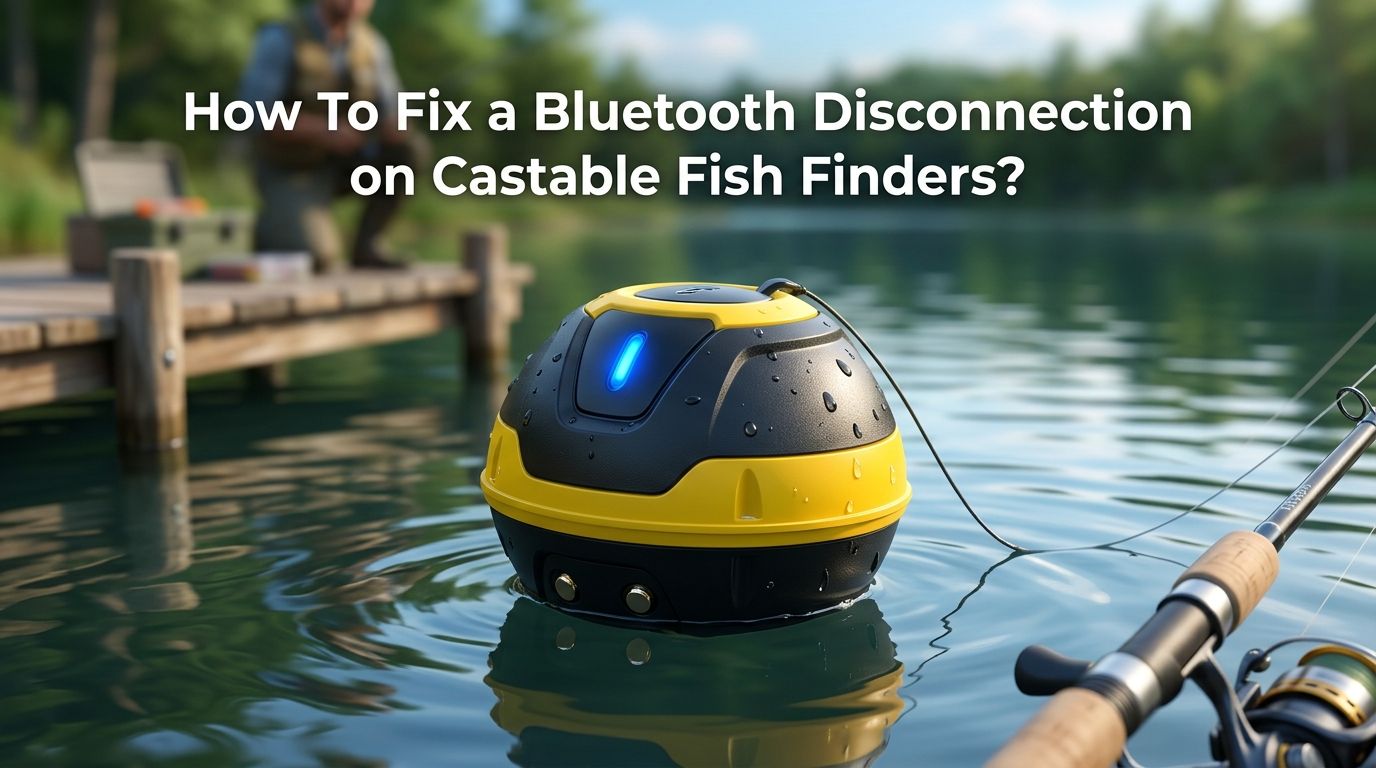
How To Fix a Bluetooth Disconnection on Castable Fish Finders?
You cast your sonar out into the water, open the app on your phone, and start scanning. Then the signal drops. The screen freezes.
You reel it back in, recast, and the same thing happens again. Bluetooth disconnection on a castable fish finder is one of the most common and frustrating problems anglers face on the water.
Castable fish finders rely on a wireless connection between a small sonar unit and your smartphone or tablet. That connection uses Bluetooth or Wi-Fi, and both are sensitive to distance, interference, phone settings, and even how you hold your device.
Key Takeaways
- Bluetooth range is limited on castable fish finders. Most units work reliably within 100 to 160 feet. Casting beyond this range is the number one reason for signal drops. Always check the rated range of your device and stay within it.
- Your phone’s battery optimization settings can kill the connection. Android and iOS devices often put background apps to sleep to save power. This can shut down the fish finder app mid-session. Disabling battery optimization for the app is a quick and effective fix.
- Physical obstructions and signal interference cause drops. Other Bluetooth devices, Wi-Fi hotspots, and even nearby power lines can interfere with the signal. Keeping your phone elevated and away from metal objects helps maintain a stable link.
- Outdated firmware and app versions create compatibility gaps. Manufacturers release updates to fix bugs and improve Bluetooth stability. Always run the latest firmware on your sonar unit and the latest version of the companion app on your phone.
- A proper pairing process matters more than most anglers realize. Pairing through the fish finder app instead of your phone’s Bluetooth settings menu (or vice versa) can solve persistent connection failures. Unpairing, forgetting the device, and re-pairing from scratch often resolves stubborn issues.
- Water activation is required on many castable units. Some sonar devices only power on when submerged. If you try to pair before placing the unit in water, the connection will fail every time.
Understand How Castable Fish Finders Connect
Castable fish finders send sonar data wirelessly from a floating unit to your smartphone. Some models use Bluetooth Low Energy (BLE), while others use Wi-Fi Direct. The Deeper Sonar series, for example, uses Wi-Fi. The Garmin Striker Cast and iBobber use Bluetooth.
Each protocol has different strengths and weaknesses. Bluetooth consumes less power but has a shorter effective range, usually around 100 to 160 feet. Wi-Fi offers a longer range and faster data transfer but drains more battery on both the sonar unit and your phone.
Understanding which connection type your device uses is the first step. It tells you where to look for problems and which phone settings to adjust. Check your user manual or the manufacturer’s website to confirm your connection type.
Pros of Bluetooth: Lower power consumption, simple pairing, works with most smartphones.
Cons of Bluetooth: Shorter range, more sensitive to interference, slower data transfer.
Check the Bluetooth Range of Your Device
The most common cause of disconnection is casting the sonar beyond its Bluetooth range. Most castable fish finders are rated for 100 to 200 feet. That sounds like a lot on paper, but real world conditions reduce this number.
Water surface conditions, wind, and even the angle between your phone and the sonar unit affect signal strength. If you cast too far out, the connection drops immediately or becomes unstable. The fix is simple: shorten your cast.
Keep your sonar unit within about 75% of the manufacturer’s rated range for a reliable connection. If your device is rated at 160 feet, try to keep it within 120 feet. This buffer accounts for environmental factors that weaken the signal.
Pros of staying within range: Consistent signal, reliable sonar readings, fewer reconnection attempts.
Cons of staying within range: Less water coverage per cast, may miss structures farther from shore.
Elevate Your Phone’s Position
Bluetooth signals travel in a straight line and weaken quickly near the ground. Many anglers rest their phone on a tackle box, a cooler, or the ground. This creates a poor line of sight between the phone and the sonar floating on the surface.
Raising your phone higher improves the signal path. Use a phone mount attached to your fishing rod, a small tripod, or a phone holder clipped to a bucket or chair back. Even holding your phone at chest or shoulder height makes a noticeable difference.
Some anglers report that mounting their phone on a rod holder or tripod eliminated their disconnection issues entirely. The signal no longer has to pass through obstacles or travel along the ground. This is one of the easiest and cheapest fixes you can try.
Pros of elevating your phone: Better signal strength, longer effective range, free hands for fishing.
Cons of elevating your phone: Requires a mount or tripod, phone may be exposed to sun or rain.
Disable Battery Optimization for the Fish Finder App
Modern smartphones aggressively manage battery usage. Android and iOS will put background apps to sleep or restrict their access to Bluetooth. This is the silent killer of fish finder connections.
On Android, go to Settings > Apps > [Fish Finder App] > Battery > Unrestricted. This tells the system to let the app run freely in the background. On iOS, go to Settings > General > Background App Refresh and make sure the fish finder app is enabled.
Some Samsung phones have an additional setting called “Sleeping Apps” that you need to check. Remove the fish finder app from this list. ReelSonar’s iBobber also has a “Smart Watch” toggle in its settings that fixes disconnections on certain Samsung models.
After making these changes, restart your phone before your next fishing trip to ensure the new settings take effect.
Pros of disabling optimization: Prevents the system from killing the connection, works immediately.
Cons of disabling optimization: Slightly higher battery drain on your phone during the session.
Remove Bluetooth Interference Sources
Bluetooth operates on the 2.4 GHz frequency band. This is the same band used by Wi-Fi routers, other Bluetooth devices, microwave ovens, and some wireless cameras. When multiple devices compete on this frequency, your fish finder signal suffers.
Turn off any Bluetooth devices you are not using, such as wireless headphones, speakers, or smartwatches. Disconnect from nearby Wi-Fi networks on your phone if possible. If you are fishing near power lines, docks with electronics, or crowded areas with many wireless devices, move to a quieter spot.
Even your car’s Bluetooth can cause issues if you are parked close to the water’s edge. Disabling Wi-Fi and Bluetooth scanning on Android (found under Location > Scanning) also reduces background interference.
Pros of reducing interference: Cleaner signal, fewer dropouts, more stable sonar readings.
Cons of reducing interference: May need to temporarily disconnect useful devices like smartwatches.
Unpair and Re-pair Your Fish Finder
Sometimes the Bluetooth pairing data stored on your phone becomes corrupted. The phone thinks it is connected, but the sonar unit disagrees. A fresh pairing process fixes this.
Go to your phone’s Bluetooth settings and find the fish finder device. Tap “Forget” or “Unpair” to remove it completely. Then close the fish finder app and restart your phone. Place the sonar unit in water to activate it, open the app, and follow the pairing instructions from scratch.
For Garmin Striker Cast, the manufacturer recommends trying both pairing methods. If the app method fails, try pairing through the phone’s Bluetooth menu first. If the Bluetooth menu method fails, try the app. This back and forth approach resolves many stubborn pairing problems.
Always follow the specific pairing order recommended by your device manufacturer.
Update Firmware and the Companion App
Outdated software is a frequent cause of Bluetooth instability. Manufacturers regularly release firmware updates that fix known connection bugs and improve performance. Your phone’s companion app also receives updates that address compatibility issues with new phone models and operating system versions.
Check your app store for updates to the fish finder app. Most apps display the firmware version of the sonar unit inside the settings menu. If a firmware update is available, follow the on-screen instructions to install it. Keep the sonar unit close to your phone during the update and do not interrupt the process.
Some devices, like the Deeper Sonar, require a stable Wi-Fi connection during the firmware update. Others, like the Garmin Striker Cast, update through the app over Bluetooth. Make sure your phone has at least 50% battery before starting any update.
Pros of updating: Fixes known bugs, improves stability, adds new features.
Cons of updating: Occasional risk of a failed update, requires planning before a trip.
Ensure Water Activation Is Working
Many castable fish finders use a water activated power switch. The sonar unit turns on only when submerged. If the contacts are dirty, corroded, or blocked, the unit may not power on correctly. This causes the device to appear available for pairing but then disconnect immediately.
Clean the metal contacts on the sonar unit with a soft cloth and fresh water after every use. Salt water anglers should rinse the unit thoroughly. Check for any visible corrosion or buildup on the charging port and sensor contacts.
If the unit seems to turn on intermittently, try placing it in a bucket of water at home and attempt to connect. This controlled test removes casting distance and interference from the equation. If it still disconnects in a bucket, the problem is likely hardware related.
Pros of checking water activation: Identifies hardware issues early, easy to test at home.
Cons of checking water activation: Does not fix software or range issues.
Manage Your Phone’s Bluetooth Settings
Your phone’s general Bluetooth configuration can affect fish finder performance. Bluetooth scanning, location permissions, and nearby device detection all play a role.
On Android, go to Settings > Location > Scanning and turn off both Wi-Fi scanning and Bluetooth scanning. These features constantly search for nearby devices in the background and can interfere with active Bluetooth connections.
Make sure the fish finder app has location permission enabled. Both Android and iOS require location access for Bluetooth to function properly with many apps. Without it, the app may not detect the sonar unit at all. This is a common oversight that leads anglers to think the sonar is broken.
Pros of adjusting Bluetooth settings: Reduces background noise, allows the app to function properly.
Cons of adjusting Bluetooth settings: Turning off scanning may affect other apps or services.
Avoid Multitasking During Sonar Sessions
Running too many apps on your phone while using a castable fish finder puts stress on Bluetooth resources. Background apps that use Bluetooth or Wi-Fi can compete with the fish finder app for bandwidth and processing power.
Close all unnecessary apps before starting your fishing session. Music streaming apps, social media, and navigation apps are common offenders. If you need music, consider using a wired connection or a separate device.
Keep your phone’s screen active while using the fish finder. Some phones reduce Bluetooth performance when the screen turns off. Adjusting your phone’s screen timeout to a longer duration or using a “keep screen on” option in the fish finder app can help maintain the connection.
Consider putting your phone in airplane mode and then turning Bluetooth back on manually. This kills all other wireless connections and gives your fish finder exclusive access to the Bluetooth radio.
Pros of reducing multitasking: Frees up system resources, stabilizes the Bluetooth connection.
Cons of reducing multitasking: Limits phone functionality during the fishing session.
Test With a Different Phone or Tablet
If you have tried every fix above and still experience disconnections, the issue may be your phone itself. Some phone models have weaker Bluetooth radios than others. Certain Android skins and custom operating system versions handle Bluetooth differently.
Borrow a friend’s phone or use an old tablet to test the fish finder. Download the companion app, pair the device, and see if the disconnections persist. If the sonar works perfectly on another device, your phone’s Bluetooth hardware or software is the problem.
In this case, you can try resetting your phone’s network settings. On Android, go to Settings > System > Reset Options > Reset Wi-Fi, Mobile & Bluetooth. On iOS, go to Settings > General > Transfer or Reset > Reset Network Settings. This clears all saved Bluetooth pairings and network configurations.
Pros of testing another device: Isolates the problem, confirms whether the sonar unit is faulty.
Cons of testing another device: Requires access to a second device.
Contact the Manufacturer for Warranty Support
If none of the above solutions work, your castable fish finder may have a hardware defect. Bluetooth antennas, water sensors, and internal circuits can fail over time, especially with repeated casting and exposure to the elements.
Reach out to the manufacturer’s support team. Garmin, Deeper, and ReelSonar all offer online support portals, email support, and phone lines. Have your device serial number and a description of the problem ready. Many manufacturers offer warranty replacements for units with confirmed Bluetooth defects.
Document your troubleshooting steps before contacting support. This speeds up the process and shows you have already ruled out common fixes. Most support teams respond within a few business days.
Pros of contacting support: Access to expert help, potential warranty replacement.
Cons of contacting support: May take several days, could require shipping the unit.
Prevent Future Bluetooth Disconnections
Prevention is always better than troubleshooting on the water. Develop a pre-trip routine that includes charging your sonar fully, updating the app, and testing the connection before leaving home.
Store your castable fish finder in a dry, cool place between trips. Moisture left in the charging port or on the sensor contacts causes corrosion over time. Use a small protective case or pouch. Rinse the unit with fresh water after every saltwater session.
Keep your phone’s operating system updated as well. OS updates often include Bluetooth stability improvements. Set a reminder to check for both app and firmware updates once a month during fishing season.
Finally, carry a small portable charger on every trip. A phone with low battery may reduce Bluetooth performance to conserve power. Keeping your phone above 30% charge ensures the Bluetooth radio operates at full strength.
Frequently Asked Questions
Why does my castable fish finder keep disconnecting from my phone?
The most common reasons are casting beyond the Bluetooth range, phone battery optimization shutting down the app, signal interference from other wireless devices, and outdated firmware or app versions. Start by checking your casting distance and phone settings. These two fixes resolve the majority of disconnection problems.
Do I need to put my castable fish finder in water before pairing?
Yes, many models use a water activated power switch. The sonar unit only turns on when its contacts detect water. If you try to pair while the unit is dry, it will not appear in your Bluetooth device list. Always place the unit in water first, then open the app and begin pairing.
Can other Bluetooth devices interfere with my fish finder?
Absolutely. Bluetooth operates on the 2.4 GHz band, which is shared with Wi-Fi, other Bluetooth devices, and various wireless equipment. Turn off unused Bluetooth connections and disable Wi-Fi scanning on your phone to reduce interference and stabilize the fish finder signal.
How far can I cast my fish finder and still maintain a Bluetooth connection?
Most castable fish finders have a rated range of 100 to 200 feet. Real world performance is usually about 75% of the rated range due to water conditions, obstacles, and interference. Stay within that 75% threshold for the most reliable connection.
Should I pair through the app or through my phone’s Bluetooth settings?
This depends on your device. Garmin recommends trying both methods. If pairing through the app fails, try the phone’s Bluetooth menu instead, and vice versa. Always forget or unpair the old connection before attempting a new one to avoid corrupted pairing data.
How often should I update my fish finder’s firmware?
Check for updates at least once a month during fishing season. Firmware updates fix known Bluetooth bugs and improve overall performance. Set a reminder to check the companion app and your app store for new versions before each trip.

Hi, I’m Ivy Webb, the passionate angler and creator behind BaitHookVault.com. I spend my days out on the water personally testing and reviewing a wide variety of fishing tools and gear.