Why Is My Bite Alarm App Not Syncing With My Phone and How to Reset It?
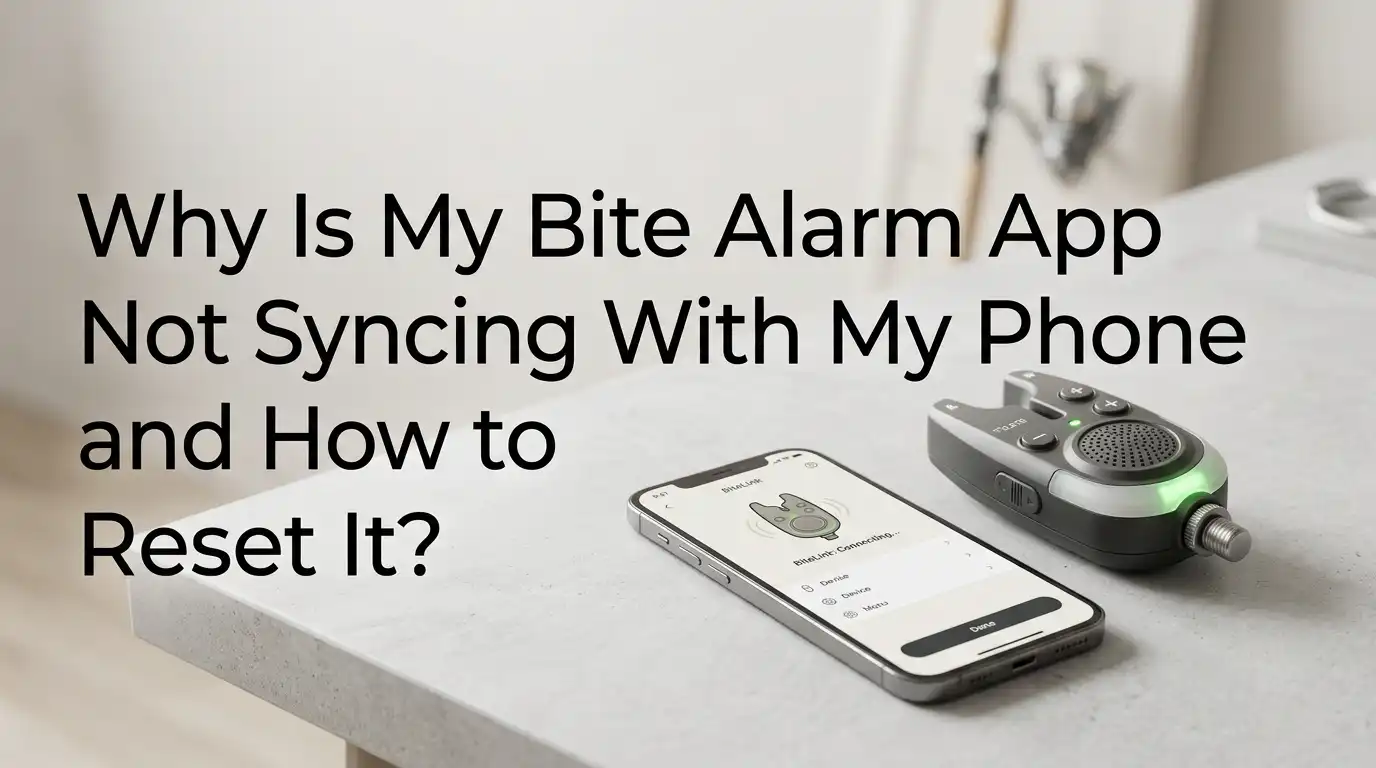
A bite alarm app should make fishing easier. It should send alerts fast, stay connected, and help you relax near the bank. So it feels very annoying when the app will not sync, drops the signal, or refuses to find your alarm at all.
The good news is this problem is often simple. In many cases, the issue comes from Bluetooth permission, low battery power, old pairing data, a weak signal, or an app setting that blocks the connection.
You do not always need a new alarm. You usually need a clear order of checks and a clean reset.This guide gives you that order. You will learn what to check first, how to reset the app and device, and how to stop the same problem from coming back.
In a Nutshell
- Start with the easy checks first. Many sync problems come from simple things like Bluetooth being off, the app missing permission, or the alarm battery being weak. A quick basic check can save a lot of time. Before you reset anything, make sure both the phone and the alarm are powered on, close together, and ready to pair.
- Permissions matter more than many anglers think. On iPhone, apps need Bluetooth access to find nearby devices. On many Android phones, the app may also need Nearby Devices access, and some models still need location access for scanning. If the app cannot scan, it cannot sync. This is one of the most common hidden causes.
- Old pairing data can block a fresh connection. Your alarm may still be stored inside the app, the phone, or the receiver memory. That old record can confuse the next pairing attempt. Deleting the old connection and pairing again from scratch often works better than tapping connect again and again.
- Battery strength affects syncing more than people expect. A bite alarm may still power on with weak batteries but fail during pairing or drop the signal after a few minutes. Fresh batteries are a smart test because they remove one major cause right away. This applies to the alarm, the receiver, and even your phone battery if it is in power saving mode.
- Firmware, app updates, and phone settings can all break the link. A phone update can change Bluetooth rules. An app update can fix pairing bugs. Some smart alarms and receivers work best when all linked units run the same current version. If one part is out of date, sync can become unstable or fail outright.
- A full reset should be your clean finish. If the app still will not sync, clear the old pairing memory, remove the alarm from the app and phone, restart both devices, then pair one alarm at a time. This clean method takes longer, but it gives the best chance of success and helps you see where the problem really sits.
Check the easiest things before you do anything else
Start simple first. Small setup mistakes cause a lot of sync problems. Make sure your phone has Bluetooth turned on and the bite alarm is actually powered on. Open the app and confirm you are signed in if the app needs an account.
Next, bring the phone very close to the alarm or receiver. Keep them within a metre for the first test. If you have more than one alarm, turn the others off for now. That reduces signal confusion and makes the first connection cleaner.
Also check whether the app is stuck on an old screen. Close it fully and open it again. Then try a fresh scan. Pros: This method is fast, safe, and costs nothing. Cons: It only helps if the problem is a simple setting or a missed tap. Still, it should always be your first move.
Make sure the app has the right phone permissions
A bite alarm app needs permission to find and talk to nearby devices. On iPhone, many apps need Bluetooth access before they can connect. On Android, many apps need Nearby Devices access, and some phones also need location access for Bluetooth scanning.
Go into your phone settings and open the app permissions page. Check Bluetooth, Nearby Devices, and location if your phone shows that option. Then reopen the app and try again. If the permission prompt never appeared the first time, delete the app, reinstall it, and let it ask again.
This fix is very important because the app cannot sync if the phone blocks the scan. Pros: It solves a hidden software block very fast. Cons: It may feel confusing because the app can open normally even while permission is missing.
Confirm that your phone and alarm can work together
Some anglers assume every bite alarm app works with every phone in the same way. That is not always true. App version, phone version, and alarm model all matter. A smart alarm may support only certain app builds, or a receiver may need to be linked first before the phone can see the setup.
Open the product instructions or app listing and check device support. Make sure your phone system is current enough for the app. Also confirm that your exact alarm model supports phone syncing.
Some alarms pair only with a matching receiver and then pass alerts through that path.
If you changed phones recently, this matters even more. Pros: This check stops you chasing the wrong fix. Cons: It does not repair the problem on its own, but it tells you whether syncing should work in the first place.
Replace or recharge batteries before you go deeper
Weak batteries often create strange behaviour. The alarm may switch on, flash lights, or make sounds, yet still fail to sync well. That happens because connection tasks need steady power. A receiver with low power may also drop the link even if the alarm looks fine.
Use fresh quality batteries if your model takes replaceable cells. If your setup charges by cable, charge the alarm and receiver fully before another pairing attempt. Also take your phone off low power mode during testing. A clean power check removes doubt.
Some manufacturers even warn against using rechargeable batteries in certain units. Others show low battery with a light colour change instead of a loud warning. Pros: This is easy and often effective. Cons: It costs a bit more if you use fresh batteries and the real problem sits elsewhere.
Reduce distance and remove anything that blocks the signal
Bluetooth links are short range and can become weak around metal, thick bags, wet gear, and packed tackle. If your app syncs for a moment and then drops, signal quality may be the real issue. Distance matters more during the first pairing than during normal use.
Put the phone next to the alarm or receiver. Move away from large metal bank sticks, power packs, other Bluetooth devices, and busy electronics. If you are pairing in a bivvy full of gear, step outside and test in a clear space. Turn off spare Bluetooth devices on your phone for a minute to reduce noise.
Pros: This method is quick and often helps with unstable syncing. Cons: It will not fix permission or firmware problems. Still, a strong clean signal gives every other fix a better chance to work.
Delete the old pairing and connect again from scratch
If the app once worked and now refuses to sync, old pairing data is a strong suspect. Your phone may still remember the device. The app may also keep an old record that no longer matches the alarm after an update, battery change, or reset.
Remove the alarm from inside the app if that option exists. Then open your phone Bluetooth settings and forget the device if it appears there. Turn Bluetooth off and back on. Restart the alarm or receiver. After that, open the app and run a fresh pairing process as if it were a new setup.
This is one of the best all round fixes. Pros: It clears stale connection data and often restores normal syncing fast. Cons: You may lose custom names, tones, or saved settings and need to set them again.
Reset the alarm or receiver memory the right way
Some bite alarm systems store pairing memory inside the receiver or alarm itself. If that memory holds the wrong record, the app can keep failing even after you forget the device on your phone. That is why a full reset matters on many setups.
Check your manual for the exact reset method. Some models use a memory clear mode. Others need you to hold several buttons while powering on. After the reset, switch the unit off, wait a few seconds, then turn it back on and pair again. If you use a receiver, reset that first, then add one alarm at a time.
Do not rush this step. Pros: A true memory clear removes deep pairing errors. Cons: It takes more time and wipes saved channels or preferences. Still, it is the cleanest fix when basic reconnect steps do not work.
Update the app, phone software, and device firmware
An old app can fail after a phone update. An old phone system can also struggle with a newer app build. On smart alarm systems, firmware version matters too. If the alarm, receiver, and app do not match well, syncing may become unstable.
Go to your app store and install the latest app update. Then check your phone for a system update. If your bite alarm brand offers firmware updates, install them in the order the maker recommends. Some brands work best when every linked unit is updated together.
Pros: Updates can solve bugs, improve Bluetooth stability, and restore missing features. Cons: Updates can take time and may reset settings. In rare cases, one updated device paired with one older device can still cause trouble, so update the full setup if your system allows it.
Turn off battery saving and background limits on your phone
Many phones try to save power by slowing or stopping apps in the background. That is helpful for battery life, but it can break a bite alarm app. The app may pair once, then stop sending alerts when the screen locks or after a few minutes in your pocket.
Open the app settings on your phone and allow background activity. On Android, set the app battery use to unrestricted if your phone offers that choice. On iPhone, keep Bluetooth on and avoid Low Power Mode during testing. Also turn off Focus or Do Not Disturb if alerts seem silent rather than disconnected.
Pros: This fix helps when syncing works but alerts fail later. Cons: It may use more phone battery. Even so, a bite alarm app needs steady background access to stay reliable.
Clear the app cache or reinstall the app cleanly
If the app crashes, freezes, or stays stuck on searching, the app itself may be the problem. Apps store temporary data, and that data can go bad. On Android, clear the app cache first. If that does not help, clear app storage if you are happy to sign in again. On iPhone, remove the app and install it again.
Before you reinstall, note any settings you want to keep. After reinstalling, grant every permission the app asks for, then pair again from the start. Restart the phone too, because a restart clears many short lived Bluetooth problems.
Pros: A clean reinstall can remove corrupted app data and restore missing permission prompts. Cons: You may lose saved settings, login details, and custom alert choices. Still, it is a very strong software fix.
Pair one device at a time if you use a full alarm set
A full alarm set adds more points where the process can go wrong. If you try to sync several alarms at once, the app or receiver may grab the wrong one first, miss one channel, or keep partial pairing data. Keep the test small and clear.
Turn off every alarm except one. Pair that single alarm to the receiver or app. Test it with a short run. Once it works, add the second unit. Then repeat the test. This slow method shows exactly where the problem starts. If one alarm keeps failing while the others work, you have found the weak point.
Pros: This method is great for finding one bad unit or one bad channel. Cons: It takes more time than pairing everything at once, but it gives much cleaner results.
Know the signs of a hardware problem
If you tried every clean software fix and the app still will not sync, the fault may sit in the hardware. The alarm may have a weak Bluetooth module. The receiver buttons may fail to enter pairing mode. Battery contacts may be dirty, loose, or worn. A water hit or hard knock can also damage the unit without leaving obvious marks.
Look for signs like random shutdowns, missing lights, buttons that do not respond, or a unit that only works when you press the battery cover. Test with another phone if possible. If the same alarm fails on two phones, the alarm becomes the main suspect.
Pros: This check helps you stop wasting time on app settings. Cons: Hardware faults usually need repair, replacement, or brand support. But it is better to know that clearly than keep repeating resets.
Build a simple reset routine that works every time
Once you fix the problem, keep a repeatable routine. That routine saves time before your next session. Start with charged gear. Keep the app updated. Pair close to the alarm. Use one device first. Then add the rest of your setup. If the app acts odd, remove the old pairing before you try again.
A good routine might look like this. Turn on Bluetooth. Open the app. Check permissions. Power on the receiver and one alarm. Pair at close range. Test the alert. Then add the other alarms. Simple order creates stable results.
Pros: A routine prevents panic and reduces future sync issues. Cons: It feels basic, but that is the point. The best fix is often a repeatable process, not a clever trick.
FAQs
Why does my bite alarm app see the device but still not connect?
This usually points to old pairing data, weak battery power, or a mismatch between the app and the device firmware. The phone can detect the alarm, but the final handshake fails. Delete the old pairing, restart both devices, and pair again at very close range.
Should I reset the app first or reset the alarm first?
Start with the app and phone side first because that is quicker and safer. Remove the saved device, restart Bluetooth, and try a fresh pair. If that fails, then reset the alarm or receiver memory and rebuild the setup from zero.
Can low battery really stop syncing even if the alarm still turns on?
Yes. A weak battery can power lights and sounds but still fail during pairing or lose connection after a short time. That is why fresh batteries or a full charge are one of the best early checks.
Why does the app stop working after my phone screen locks?
Your phone may be limiting the app in the background. Check battery saving, background app use, Bluetooth permission, and notification settings. If those are too strict, the app may pair once but stop sending alerts later.
What should I do if only one alarm in my set will not sync?
Turn off the rest and test that single unit on its own. If the others connect and one does not, the issue likely sits in that alarm, its battery contacts, or its channel memory. A full memory clear and fresh pairing often helps.
When should I contact support?
Contact support after you have checked permissions, batteries, distance, app reinstall, firmware, and full memory reset. If the same unit still fails on more than one phone, support or repair is the next smart step.

Hi, I’m Ivy Webb, the passionate angler and creator behind BaitHookVault.com. I spend my days out on the water personally testing and reviewing a wide variety of fishing tools and gear.