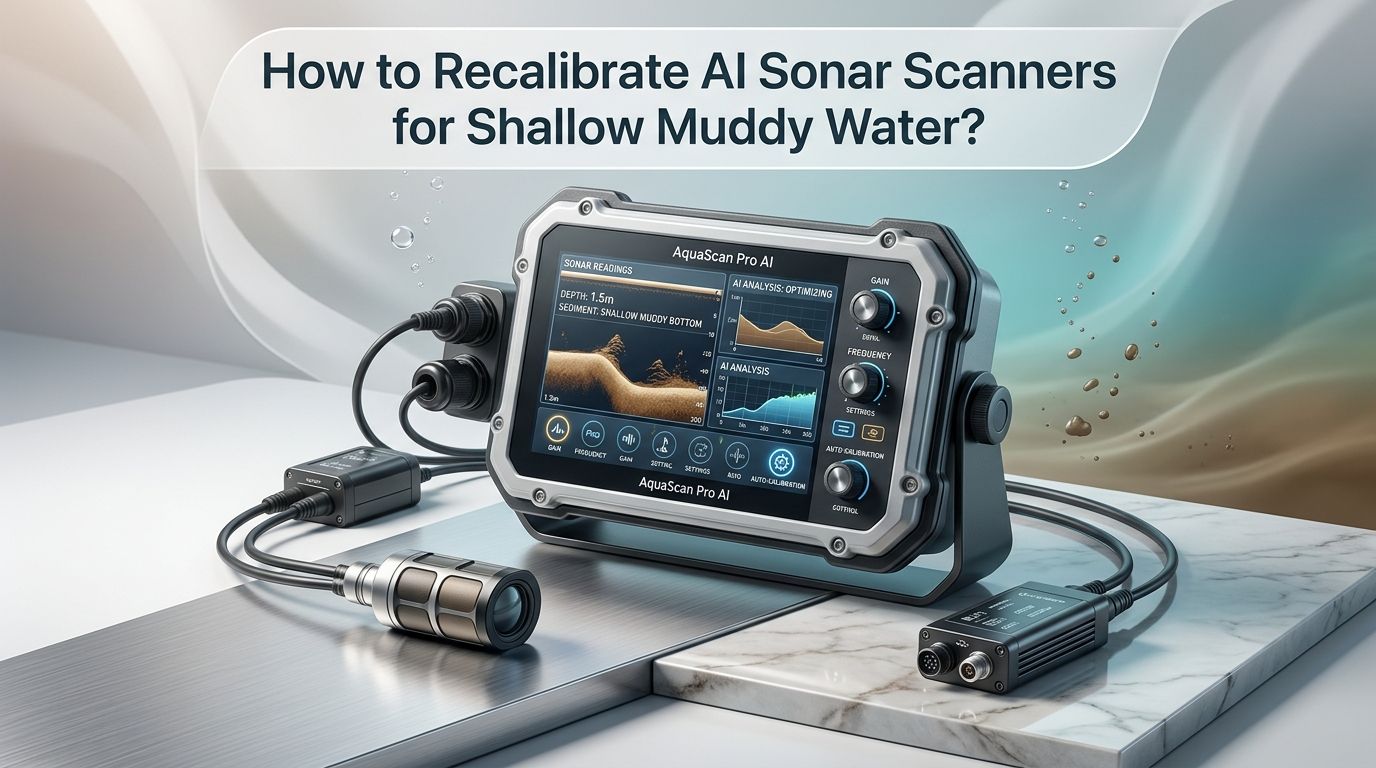
How to Recalibrate AI Sonar Scanners for Shallow Muddy Water?
Shallow muddy water is the worst enemy of your AI sonar scanner. The suspended sediment scatters sound waves, creates false echoes, and turns your screen into an unreadable mess of clutter.
Your sonar may show wildly inaccurate depths, phantom bottom readings, or lose the bottom signal altogether. If you fish, survey, or work in murky shallows, you already know this frustration.
The good news? You can fix it. AI sonar scanners are powerful tools, but they need manual help when conditions get tough.
Key Takeaways
- Use higher sonar frequencies (200 kHz or above) in shallow muddy water. Higher frequencies produce narrower beams with better resolution in shallow depths, cutting through suspended particles more effectively than low frequency settings.
- Reduce your sensitivity or gain setting to between 60% and 75%. Too much gain amplifies the noise from mud particles and creates a cluttered, unreadable display. Lowering it removes false returns while keeping real targets visible.
- Switch to CHIRP mode if your scanner supports it. CHIRP sonar sends a sweep of frequencies rather than a single pulse, which gives you cleaner target separation and better bottom definition even in dirty water.
- Clean your transducer before every session in muddy water. Sediment buildup on the transducer face degrades signal quality fast. A soft brush and mild soap solve most accuracy problems before you even touch the settings.
- Adjust your noise rejection and TVG (Time Variable Gain) filters. These built in tools specifically target the kind of clutter that muddy water creates. Turning noise rejection to medium or high and tweaking TVG removes surface and mid water interference.
- Test and verify your calibration against a known depth. Drop a weighted measuring line to the bottom in a known spot and compare it to your sonar reading. This simple check confirms whether your recalibration actually worked.
Why AI Sonar Scanners Struggle in Shallow Muddy Water
AI sonar scanners rely on sound waves that travel from the transducer to the bottom and back. In clean, deep water, this process works perfectly.
Shallow muddy water creates two major problems at once. The suspended sediment particles scatter and absorb the sonar signal before it reaches the bottom. The shallow depth gives the sound waves very little room to separate targets from noise.
Mud particles act like tiny mirrors that bounce sound energy in random directions. This creates a screen full of false returns that the AI software struggles to interpret. The artificial intelligence algorithms are trained on clean signal patterns, so heavy clutter confuses their classification systems.
Shallow water also causes a problem called “ringing.” The transducer receives its own echo almost instantly because the bottom is so close. This overlap between the transmitted pulse and the return echo creates interference near the surface.
Soft muddy bottoms make this worse because they absorb much of the sonar energy and return a weak, unclear bottom signal. Your scanner may display double bottoms, fluctuating depth readings, or no bottom reading at all.
Check and Clean Your Transducer First
Before you change any settings, start with the physical hardware. A dirty transducer is the most common cause of poor sonar performance in muddy water. Sediment, algae, and biological growth build up on the transducer face over time. Even a thin film of mud can block or distort the sonar signal.
Remove any visible buildup using a soft bristled plastic brush. Avoid metal scrapers or abrasive pads because they can scratch the transducer surface and permanently damage its performance. Use mild dish soap and fresh water to clean the face thoroughly.
Check the transducer mounting as well. In shallow water, even small changes in the transducer angle affect accuracy.
The transducer should sit level with the hull bottom and face straight down without any tilt. Air bubbles trapped around the transducer also cause signal loss. Make sure the mounting area has no gaps, cracks, or loose fittings that could trap air during movement.
Pros: This step costs nothing and often solves the problem entirely. It takes less than 10 minutes.
Cons: Cleaning alone will not fix issues caused by extreme turbidity or incorrect software settings.
Switch to a Higher Sonar Frequency
Frequency selection is one of the most important adjustments for shallow muddy water. Most AI sonar scanners offer at least two frequency options, typically 83 kHz and 200 kHz. Some newer models offer frequencies up to 800 kHz or even 1.2 MHz for imaging modes.
For shallow muddy conditions, select the highest available frequency for your 2D sonar view. A 200 kHz setting produces a narrow, focused beam that gives you better target resolution in shallow water. It also reduces the volume of water being sampled, which means fewer mud particles show up as clutter on your screen.
Lower frequencies like 50 kHz or 83 kHz send wider beams that pick up more suspended sediment. They are better for deep water scanning but terrible in muddy shallows.
If your unit supports CHIRP, set it to High CHIRP mode. High CHIRP sweeps through a range of higher frequencies and gives you the best combination of resolution and noise filtering. This mode helps the AI engine distinguish real targets from sediment scatter.
Pros: Immediately reduces clutter and improves bottom definition. No additional equipment needed.
Cons: Higher frequencies have shorter range, which matters less in shallow water but limits deep scanning if you move to deeper areas.
Adjust Your Gain and Sensitivity Settings
Gain controls how much the sonar amplifies the returning echo signals. In muddy water, the default auto gain setting almost always runs too high. The AI tries to boost weak returns, but it also amplifies all the noise from suspended particles. The result is a screen packed with color that hides the actual bottom and any real targets.
Take your gain off auto mode and set it manually. Start at around 65% to 70% and work from there. Look at your screen as you lower it. You want to see a clear, defined bottom line with minimal clutter in the water column above it.
Color gain or color limit is a separate but related setting. It controls the threshold at which returns appear as strong (colored) signals on screen. Raising the color limit slightly removes weak returns from mud particles while keeping stronger returns from the bottom and fish visible.
Make these adjustments slowly. Change one setting at a time and observe the screen for 30 seconds before making another change. This prevents overcorrection that could cause you to lose the bottom signal entirely.
Pros: Gives you direct control over display clarity. Works on virtually every sonar unit.
Cons: Manual gain requires ongoing adjustment as water conditions change throughout the day.
Use Noise Rejection and Interference Filters
Every modern AI sonar scanner includes built in noise rejection tools. These filters are specifically designed to remove the kind of random scatter that muddy water produces. Most users leave them at default settings, which are often too low for turbid conditions.
Find your noise rejection setting in the sonar menu. Set it to medium or high for muddy shallow water. This filter analyzes incoming signals and removes patterns that match random noise rather than real targets. The AI processing engine works much better when the raw data has already been cleaned by the noise filter.
Interference rejection is a separate filter that removes electronic noise from other sonar units, motors, or onboard electronics. Turn this on if you are around other boats or running multiple electronic systems. It prevents false signals that look similar to sediment clutter.
Some units also offer a Surface Clutter setting. In shallow water, surface noise can fill a large portion of the screen. Increase the surface clutter rejection to clean up the top portion of your display.
Pros: These filters work passively in the background and require no constant attention once set.
Cons: Setting noise rejection too high can remove weak but real targets like small fish or subtle bottom features.
Fine Tune TVG for Shallow Depths
Time Variable Gain, or TVG, is a critical but often overlooked setting. TVG controls how the sonar amplifies signals based on how far they traveled. Signals from deeper water are weaker because they travel farther, so TVG normally boosts deep returns more than shallow ones.
In shallow muddy water, TVG needs adjustment because almost all returns come from a short distance. If TVG is set too aggressively, it over amplifies near surface clutter from mud particles. This fills your screen with noise right at the top where shallow water returns appear.
Reduce your TVG setting to a lower value for shallow work. On most units, this is a numerical scale. Start by lowering it 20% to 30% from the default. Watch how the near surface clutter changes. You should see a cleaner display in the upper water column without losing bottom definition.
Some AI sonar systems adjust TVG automatically based on depth. If your unit does this, check whether it is responding correctly. In very shallow muddy water, the auto TVG sometimes gets confused and overcompensates.
Pros: TVG adjustment directly targets the most problematic zone in shallow muddy water scanning.
Cons: Requires some trial and error. Too little TVG can make the bottom signal appear weak.
Adjust Water Column Sensitivity for Imaging Modes
If your AI sonar scanner has side imaging or down imaging, there is a separate setting called Water Column Sensitivity that makes a big difference in muddy conditions. This setting controls how much of the water column shows up in your imaging views.
In clean water, you might want to see the water column to spot suspended fish. In muddy water, the water column is full of sediment returns that obscure everything.
Turn the Water Column Sensitivity down to a negative value. On many units, a setting between negative 5 and negative 10 removes most of the clutter while preserving clear images of the bottom structure.
You can also change your imaging frequency. If your unit offers both standard imaging (455 kHz) and mega or high definition imaging (800 kHz or higher), try the lower imaging frequency first in very muddy water.
Higher imaging frequencies pick up more fine particles. Sometimes dropping down to 455 kHz gives you a cleaner overall picture despite slightly lower resolution.
Pros: Dramatically clears up side and down imaging views. Simple one step adjustment.
Cons: Reducing water column sensitivity means you will not see fish or objects suspended in the water column.
Set Your Depth Range Manually
Auto depth range is convenient, but it causes problems in shallow muddy water. The AI system constantly adjusts the range as it reads the bottom, and in turbid conditions, it often gets confused. You may see the range jumping between 4 feet and 200 feet because the scanner mistakes mud particle returns for the actual bottom.
Lock your depth range manually. Set it to about 1.5 to 2 times the actual depth you are working in. If you are scanning in 8 feet of water, set the range to 12 or 15 feet. This gives the sonar a focused window to work within and prevents the AI from chasing false deep returns.
A manual range setting also improves the scroll speed and detail of your display. The sonar dedicates all its processing power to the range you specified rather than scanning a wide, unnecessary depth window. Bottom definition and target clarity both improve immediately.
Check your range setting regularly as you move through different depths. Adjust it as needed to keep the bottom in the lower third of your screen.
Pros: Stops erratic depth reading jumps instantly. Improves display detail and scroll quality.
Cons: Requires you to pay attention and adjust manually as depth changes.
Slow Down Your Boat Speed
Boat speed has a direct effect on sonar accuracy in shallow muddy water. At higher speeds, the transducer creates more turbulence and air bubbles beneath the hull. These bubbles block the sonar signal and create even more clutter on top of the mud particle interference.
Slow down to 2 to 5 miles per hour when you need accurate readings in turbid shallows. This speed lets the transducer maintain solid contact with the water and reduces hull generated noise. The AI processing engine also performs better at slower speeds because it receives cleaner, more consistent data to analyze.
Your propeller also stirs up bottom sediment in shallow water. This creates a cloud of mud directly in the sonar beam path. Slower speeds reduce propeller wash and give the sediment less energy to stay suspended.
If possible, use an electric trolling motor instead of your main outboard. Trolling motors produce far less turbulence and vibration, both of which improve sonar signal quality.
Pros: Free and immediately effective. Reduces multiple sources of interference at once.
Cons: Slowing down limits how much area you can cover in a session.
Reset and Retrain AI Features
Many modern sonar scanners include AI features like automatic fish identification, bottom type classification, and structure recognition. These AI models were trained on data from a wide range of conditions, but they may not perform well in extreme turbidity without some help.
Start by resetting any AI auto adjustments to factory defaults. Then re enable them one at a time as you manually optimize your base settings. This prevents the AI from fighting against your manual calibration changes.
Some units allow you to provide feedback to the AI system. If your scanner has a learning mode or confidence adjustment, lower the confidence threshold for bottom detection in muddy conditions. This tells the AI to accept weaker bottom returns as valid rather than discarding them.
Turn off automatic fish ID in very muddy shallow water. The algorithm often mistakes clutter patterns for fish targets, filling your screen with false fish icons. You will get more accurate information by reading the raw sonar arches yourself.
Pros: Prevents AI features from overriding your manual calibrations. Reduces false positive identifications.
Cons: Disabling AI features means you lose some automation and must interpret the display manually.
Verify Your Calibration With a Physical Check
After making all your adjustments, verify them. Drop a weighted line with depth markings to the bottom in a known location. Compare the measured depth to what your sonar displays. They should match within 6 inches for a properly calibrated system.
If the readings do not match, check whether the sonar is reading the top of the mud or the hard bottom beneath it. In muddy areas, the actual hard bottom may be several feet below the soft mud surface.
Your sonar might display either one depending on frequency and gain settings. Higher frequencies tend to read the mud surface, while lower frequencies can penetrate into soft sediment.
Test at three or four different spots with varying depths. A single test point is not enough to confirm accuracy across a range. Move to areas with 3 feet, 8 feet, and 15 feet of water if possible.
Document your final settings. Write down the frequency, gain, noise rejection, TVG, range, and any AI feature adjustments. This gives you a ready made calibration profile for muddy water that you can load quickly next time.
Pros: Gives you hard confirmation that your settings are working. Creates a reusable profile.
Cons: Takes extra time and requires a measuring line or marked rod.
Create Condition Based Setting Profiles
Most AI sonar scanners allow you to save multiple setting profiles. Create a dedicated “Shallow Muddy Water” profile that stores all the adjustments you just made. This saves you from repeating the entire calibration process every time conditions change.
Label your profiles clearly. You might have one for clear deep water, one for stained shallow water, and one for heavy mud and turbidity. Switch between them as you move through different areas or as weather changes water clarity.
Update your profiles regularly. Water conditions change with seasons, rainfall, and currents. A profile that worked perfectly in summer may need small tweaks in spring when runoff increases turbidity. Spend a few minutes at the start of each trip confirming your settings match current conditions.
Some AI sonar systems can also log environmental data alongside your sonar recordings. Review these logs periodically to spot patterns. You may discover that certain tide stages, wind directions, or water temperatures consistently change how your sonar performs.
Pros: Saves time on future trips. Lets you adapt quickly to changing conditions.
Cons: Requires initial effort to build and maintain multiple profiles. Not all units support profile saving.
Common Mistakes to Avoid During Recalibration
Changing too many settings at once is the biggest mistake. Adjust one parameter, observe the result, and then move to the next. If you change gain, frequency, and noise rejection all at the same time, you will not know which change helped or hurt.
Running the transducer at high speed through muddy water without checking for air bubbles is another frequent error. Stop the boat periodically and check your display at rest. If the image clears up dramatically when you stop, your problem is speed related turbulence, not a settings issue.
Do not set noise rejection to maximum and leave it there. Maximum noise rejection can erase real data along with the clutter. Use the minimum amount of filtering that gives you a usable display.
Avoid ignoring firmware updates. Sonar manufacturers frequently release software updates that improve AI performance in difficult conditions. Check for updates before the start of each season and install them promptly.
Finally, do not forget to switch back to your normal profile when you leave muddy water. Running shallow mud settings in clean deep water will give you poor results because the settings suppress too much useful data.
Frequently Asked Questions
What is the best sonar frequency for shallow muddy water?
The best frequency is 200 kHz or higher for 2D sonar in shallow muddy water. Higher frequencies produce narrower beams that reduce clutter from suspended sediment. If your unit supports High CHIRP mode, use it for the best results. For imaging modes, start with 455 kHz and move to 800 kHz only if the water is clear enough to support it.
Why does my sonar show false depth readings in muddy water?
False depth readings happen because mud particles reflect sonar energy at various depths. The scanner interprets these reflections as the bottom. Soft mud bottoms also return weak echoes that the AI may not recognize as the true bottom. Setting your depth range manually and reducing gain usually fixes this issue.
How often should I clean my transducer in muddy water?
Clean your transducer before every trip in muddy conditions. During long sessions, check it every few hours. Sediment accumulates quickly on the transducer face in turbid water. Even a thin layer of mud can reduce signal strength by 20% to 30%, which is enough to cause inaccurate readings.
Can AI sonar scanners learn to adapt to muddy water automatically?
Some newer AI sonar systems include adaptive learning features that adjust settings based on conditions. However, most current models still need manual help in extreme turbidity. The AI works best when you provide it with clean base settings. Manual calibration combined with AI processing gives the best results in challenging conditions.
Should I turn off AI features in muddy water?
You do not need to turn off all AI features. Keep automatic bottom tracking active but disable automatic fish identification in very muddy conditions. Fish ID algorithms produce too many false positives in turbid water. Manual interpretation of raw sonar data gives more accurate results. Re enable AI features when you return to cleaner water.
Does boat speed affect sonar accuracy in shallow muddy water?
Yes, boat speed significantly affects sonar accuracy in these conditions. Faster speeds create turbulence and air bubbles that block the sonar signal. They also stir up bottom sediment into the water column. Slow down to 2 to 5 miles per hour for the most accurate readings. Use an electric trolling motor if available for the least interference.

Hi, I’m Ivy Webb, the passionate angler and creator behind BaitHookVault.com. I spend my days out on the water personally testing and reviewing a wide variety of fishing tools and gear.